



Registry editor could not be opened normally characterized by the emergence of the error message "Registry editing has been disabled by your administrator". Every time we try to open the registry editor always comes up the message. This is usually caused by a virus, aim virus disable registry is to maintain life in the system. To fix the registry that disable or enable any number of ways that can be achieved.
How to enable registry is disabled via group policy (gpedit)
1. Press windows + R key combination to open the run menu, then type gpedit.msc and press enter.
2. Go to User Configuration> Administrative Templates> System
3. In the right pane, double-click Prevent Access to Registry Editing Tools, then change the status to not configured, click OK
4. Log off or restart the computer
Or by using the Antivirus SmadAV, with SmadAV we just mark the option to enable the registry editor disabled
Download SmadAV here
Read More …
Showing posts with label Registry. Show all posts
Showing posts with label Registry. Show all posts
Re-enable the Registry Editor are disabled by Virus
Label: Registry 0 komentarRe-Enable Folder Options that disabled by Virus
Label: Registry 0 komentar
To bring up or activate the folder options are missing this can be done with the settings in the Windows registry editor.
Click the Start Menu> Run> regedit
Open windows registry editor then go to:
HKEY_CURRENT_USER\Software\Microsoft\Windows\Current Version\Policies\Explorer
HKEY_LOCAL_MACHINE\Software\Microsoft\Windows\Current Version\Policies\Explorer
In each of the key above the right pane delete the DWORD with name NoFolderOptions.
Log off or restart the computer
If Registry Editor is also disabled by the virus, then I enable them are as follows
Re-enable the Registry Editor are disabled by Virus
Read More …
How To Remove PageDefrag Sysinternals
Label: Page Defrag, Registry 4 komentar
In Windows, when we do not all files contributed Defragment didefrag, for example, files that when opened or used will not be didefragmen, it causes defragmn process with results that are not perfect, Sysinternals PageDefrag product release, an application that do Defragment when booting Windows,
this is a breakthrough technology, but did you know that do Defragment every boot time would speed up damage to the hard disk, defrag should be done regularly every month,
as in the case of my computer, because every time my hard drive booting didefrag eventually occur frequently crashes and Blue Screen of Death.
I tried uninstalling this PageDefrag, but this application is hidden as in Deepfreeze, so there is no uninstall option in Control Panel.
Removing PageDefrag can only be done by Master installation application.
Way
Installation do re PageDefrag, then select the option Do not defragment, then select OK
Master Installation PageDefrag is portable, so we stayed in and click Extract
For those of you who want to try or want to remove PageDefrag from the computer you can download it here PageDefrag v.2.32
These applications can run on:
* Client: Windows XP (32-bit) and higher (32-bit).
* Server: Windows Server 2003 (32-bit) and higher (32-bit)
Read More …
Limiting computer copying files to USB Flasdisk
Label: Flashdisk, Registry, Trick Windows, Windows 0 komentar
For that I am trying to provide another alternative to the registry settings, this applies to Windows XP, for Windows 7 I have not tried it
For security reasons, you can prevent the computer storing the data to a USB drive, how:
1. Click Start and select Run. Type "regedit" (without the quotes) and click OK.
2. Find address HKEY_LOCAL_MACHINE\SYSTEM\CurrentControlSet\Control.
3. In the right pane, right click and create new keys (New Key) with the name "StorageDevicePolicies".
4. In the left pane, select the newly created StorageDevicPolicies earlier. Create a new DWORD value and name it "WriteProtect".
5. Change the value to "1". Close the editor and restart the computer.
Note:
To restore its original pal only replace the Value Data from key "WriteProtect" to 0, to reactivate Block 1 USB input
you still can copy and paste files from a flash or other devices that use the media to your computer USB port, but not vice versa.
Hopefully helpful
Read More …
Steps to cleaning Win/32 Ramnit
Label: Antivirus, Hiren's, Linux, Ramnit, Registry, Virus, Virus Shortcut 52 komentar
Or you can download the Dr.Web Live CD here:
http://www.freedrweb.com/livecd/?lng=en
1. For cleaning can be done optimally, you should scan all USB flash or external HDD, this is by Comodo Internet Security Premium, this can be done after the cleaning process is complete virus, I suggest you to use Comodo Internet Security Premium Antivirus and Firewall with a blend of strong. You can get it for free at Http://www.comodo.com
2. Before doing the cleaning should block viral duplicate files by using the "Software Restriction Policies". This feature is only there on the operating system Windows XP Pro, Vista, 7, Server 2003 and Server 2008 in the following manner:
1. Click the [Start]
2. Click [Run]
3. In the Run dialog box, type secpol.msc and then click the [OK]
4. Once the screen appears "Local Security Policy", right-click menu [Software Restriction Policies "and click" Create New Policies "or" New Software Restriction Policies "if using Windows Vista / 7
5. Then right click on the "Additional Rules", then select "New Hash Rule ..."
After that screen will display "New Hash Rule" In the column "Hash Files", click the [Browse](example C: \ Windows \ Explorermgr.exe) and specify one of the viruses that have duplicate file icon "folder" with a size of 105 KB and click the [Open]. In the "Security Level", select [Disallowed]. Then click the [OK]
Use the Live CD on the Dr.Web GUI mode so you had no trouble using Dr.Web Live CD, Linux Desktop Display As yet very easy to use. Then the scan to finish,
After that restart your computer
Or if you use Hiren's BootCD you can directly use the Live CD mode by selecting the Mini Windows XP (For those of you who are not familiar with Linux)
Read More …
How to Speed up Computer Performance
Label: Ccleaner, Free Download, Free Software, Operating System, Piriform, Registry, Registry Cleaner, Software, Speed Up Computer 0 komentar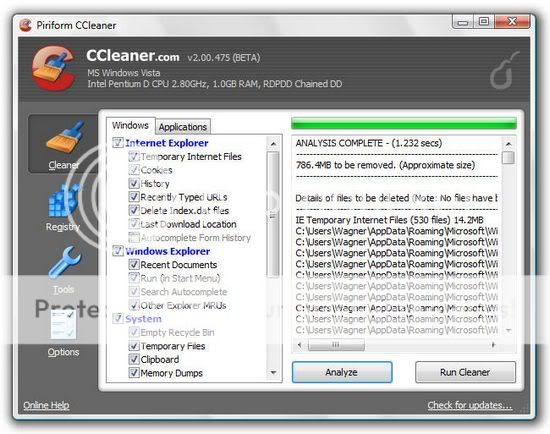
If at any time you feel that your computer was getting slow performance, there are some things that cause it to happen, ranging from temporary files or junk files, or because of a virus or it could also decrease the performance of your computer hardware.
Most of the problems experienced by computer users is slow because of the mess caused by the registry, corrupt and junk files that accumulate.
Here I will provide a way out pretty good and of course Free.
I always use CCleaner software, free software is very good but is able to clean the registry and make our computer's performance to be better
This software works by restructuring the registry, remove junk files and enhance the performance of our computers, even Hiren's boot CD also includes this software into a collection of software packages as an explanation of Piriform as the vendor of this software
CCleaner is our system optimization, privacy and cleaning tool. It removes unused files from your system - allowing Windows to run faster and freeing up hard disk space Valuable. Also it cleans traces of your online activities Such as your Internet history. Additionally it contains a fully featured registry cleaner. But the best part Is That it's fast (normally taking less than a second to run) and contains NO Spyware or Adware!
Cleans the Following:
Internet Explorer
Temporary files, history, cookies, Autocomplete form history, index.dat.
Firefox
Temporary files, history, cookies, download history, form history.
Google Chrome
Temporary files, history, cookies, download history, form history.
Opera
Temporary files, history, cookies.
Safari
Temporary files, history, cookies, form history.
Windows
Recycle Bin, Recent Documents, Temporary files and Log files.
Registry Cleaner
Advanced features to remove unused and old entries, Including File Extensions, ActiveX Controls, ClassIDs, ProgIDs, Uninstallers, Shared DLLs, Fonts, Help Files, Application Paths, Icons, Invalid Shortcuts and more ... Also comes with a comprehensive backup feature.
Third-party applications
Removes temp files and recent file lists (MRUs) from many apps Including Media Player, eMule, Google Toolbar, Netscape, Microsoft Office, Nero, Adobe Acrobat, WinRAR, WinAce, WinZip and many more ...
100% Spyware FREE
This software does NOT contain any Spyware, Adware or Viruses.
I think you need to try this software,
you can download this software at :
Read More …
This software works by restructuring the registry, remove junk files and enhance the performance of our computers, even Hiren's boot CD also includes this software into a collection of software packages as an explanation of Piriform as the vendor of this software
CCleaner is our system optimization, privacy and cleaning tool. It removes unused files from your system - allowing Windows to run faster and freeing up hard disk space Valuable. Also it cleans traces of your online activities Such as your Internet history. Additionally it contains a fully featured registry cleaner. But the best part Is That it's fast (normally taking less than a second to run) and contains NO Spyware or Adware!
Cleans the Following:
Internet Explorer
Temporary files, history, cookies, Autocomplete form history, index.dat.
Firefox
Temporary files, history, cookies, download history, form history.
Google Chrome
Temporary files, history, cookies, download history, form history.
Opera
Temporary files, history, cookies.
Safari
Temporary files, history, cookies, form history.
Windows
Recycle Bin, Recent Documents, Temporary files and Log files.
Registry Cleaner
Advanced features to remove unused and old entries, Including File Extensions, ActiveX Controls, ClassIDs, ProgIDs, Uninstallers, Shared DLLs, Fonts, Help Files, Application Paths, Icons, Invalid Shortcuts and more ... Also comes with a comprehensive backup feature.
Third-party applications
Removes temp files and recent file lists (MRUs) from many apps Including Media Player, eMule, Google Toolbar, Netscape, Microsoft Office, Nero, Adobe Acrobat, WinRAR, WinAce, WinZip and many more ...
100% Spyware FREE
This software does NOT contain any Spyware, Adware or Viruses.
I think you need to try this software,
you can download this software at :
System Recovery with Comodo Time Machine
Label: Boot CD, Deep Freeze, Operating System, Registry, Software, System recovery 0 komentar
Some time ago someone asked me about a system recovery and security using Comodo Time Machine.
This makes an inspiration for me to write a discussion that contains detailed information on Comodo Time Machine.
Comodo Basically Time Machine is not much different from the workstation, that is to return all the changes that occur on a computer system to a previous time, or to the default setting.
Here's an explanation straight from the official site www.comodo.com
Why use Comodo Time Machine (CTM)?
Comodo Time Machine (CTM) is a powerful system rollback utility that allows users to quickly restore their computers to an earlier point in time. CTM 'snapshots' are a complete record of your entire system (including the registry, critical operating system files and user created documents).
Layered Security
* Schedule automatic snapshots to be taken at regular intervals
* Roll back to the last known working state in the event of virus attacks or crashes
* Take snapshots of your computer before large installations or system maintenance
Software Developers and testers can easily restore test systems to the default configuration after each deployment without the need to manually uninstall each application. Home users can even let the kids run amok on the family PC for an afternoon and be safe in the knowledge that any damage can be instantly undone and all files recovered.
Comodo Time Machine features an intuitive, friendly interface which offers quick and easy access to all functionality in the application. Additionally, it also features a sub-console that can be accessed before Windows starts and a Quick Operation console containing shortcuts to important and commonly executed tasks.
Here are some features of Comodo Time Machine :
* Easy to use - even beginners can quickly create system snapshots with a few mouse clicks
* Provides instant and comprehensive system recovery after virus or spyware infections
* Instantly reclaim your machine after devastating system crashes
* Rollback the changes to ALL your documents - not just changes to system files and the registry
* Boot-up console allows you to rollback even when your system will not boot to Windows
* Test new software and network configurations in the knowledge that you can quickly switch back if problems develop
* Completely remove unwanted software installations without the need to uninstall or clean the registry
* Flexible restore options allow you to mount and browse snapshots to recover individual files or folders
* Right click on any file or folder to synchronize it with a snapshot version
* Schedule regular system snapshots to ensure highly relevant restore points
* Network administrators have another way to quickly fix user or software problems
* Libraries, Internet cafes and other publicly shared networks can schedule a total system restore at the end of each session
You can get this software free on the official site www.comodo.com
Download Comodo Time Machine
How to speed up computer performance with a defrag?
Label: Comodo System Cleaner, Defrag, Operating System, Page Defrag, Registry, Registry Cleaner, Smart Defrag, Software, Trick Windows 2 komentarOften we see slow computer problems, it could be caused by several things, one of the messy file.
to overcome this one is to defrag.
Formatting the hard disk is a temporary solution. Plus the way it requires us to do various other things such as backing up data, reinstalling all the programs, setting up the windows, and restore the data. Even after this, if you do not spend time for maintenance, hard disk, the problem will come back again a few months after formatting the hard disk.
Cleaning and Men-Hard Disk Defrag
Defrag (defragmentation / unify piece): cause the only one who makes the hard diskmu slow is the high separation of data files and the number of groupings. In short, the way hard drives work is that when you install a program, then the windows to place the data on your hard drive in the segment nearest the existing data, if the segment is full, then the data will be stored in the next segment. Windows puts a kind of marker from one segment to another segment to process a file, and this process will continue until the windows reach the EOF (End Of File).
It is highly recommended to do defrag your hard disk so that the segments of data that can be moved separately its position so close, if not possible to be combined.
Windows does provide a feature to defrag the hard drive, but the process requires resources / sources that are substantially during the defrag your hard disk. My advice, do not use that feature. Besides that, I suggest you to download Smart Defrag (1.66 MB) for free.
This program is rich in features, including automatic defrag. By default, automatic defrag in the ON condition - he did defragment if the system in a state of unemployed for five minutes, but you can change according to your wishes. When finished setting up the Smart Defrag, you can forget to defrag your hard drive, because he walked with windows and works invisible to monitor and defrag your hard drive.
Tip: When talking about defragment the hard drive, I recommend another program in addition to dealing with Smart Defrag Pagefile. Pagefile fragmentation can cause a long boot process. Page Defrag (68 KB) defragmented the pagefile when booting so that the segments remain adjacent pagefile.

Clean your computer
Another factor that can cause a slow hard drive performance is, temporary files (temporary files), the legacy after the uninstall, cookies, logs, and many of the files that are not useful to take place in harddiskmu - which culminate in the fragmentation of files. It is important for you to delete those files. Windows already provides a feature (very limited) for it. You can try the Disk Clean-up Wizard in Accessories submenu in All Programs.
To clean up completely, I recommend Comodo System Cleaner (CSC), which can dodownload free. This program can be defragmented the registry, could accelerate the opening of a program by deleting all files and settings that are not needed privacy. CSC also has a feature to clean up our computers on schedule (scheduled cleaning).
In conclusion, the cleaning of the computer system is scheduled by CSC and auto-defrag from Smart Defrag will improve performance and speed of hard diskmu, so you seemed to have a new hard disk. With these programs you will not feel your hard disk to work slowly.
so hopefully useful. good luck
Read More …
Reregister All .dll Files Within Registry
Label: Registry, Software, Windows 0 komentarI ran across this the other day on another site and I thought that a couple people might find it helpful, so here we go:
1) First go Start/Run, and type in 'cmd' to bring up the Command Prompt.
2) Type 'CD \' and hit enter.
3) Type 'DIR *.dll /s /b > regdll.bat' and hit enter.
4) Type 'Notepad regdll.bat' and hit enter.
Now Notepad is going to bring up a list of your .dll files, nevermind that for a moment.
---
5) Now type 'Path' and hit enter to see your current path. It will bring up something like: Path=c:\Windows;c:\windows\Command
6) (supplement your Windows Version, ex: C:\WINNT, or C:\Windows) Now type: 'Path=c:\windows;c:\windows\Command;c:\Windows\Prog
ram~\Accessories' and hit enter.
7) Verify again by typing 'Path' and hitting enter, and then type: 'C:\WINNT\System32\Regsvr32.exe /s C:\' and hit enter again.
8) Now, go back to Notepad and if you have Win98 use the replace feature in Wordpad (CTRL + H) or notepad to search for 'C:\' and replace it with this: 'C:\Windows\System\Regsvr32.exe /s C:\'
If you have Win2000, etc. use the replace command in note pad to search for 'C:\' and replace it with this: 'C:\WINNT\System32\Regsvr32.exe /s C:\'
*Be sure to type the replace string exactly like above or it won't work*
9) Use "Replace All" to make the changes to the entire file.
10) When it finishes, save it, exit notepad or wordpad, and return to the Command Prompt.
11) Type 'regdll' and press enter. If you followed the above steps correctly it will now go through and re-register all your .dll files. Read More …
Subscribe to:
Posts (Atom)