


Sometimes we see some error message in Windows, can be a way Blue Screen of Death or it could be fatal Runtime Error message.
Since some time ago I had explained about the Blue Screen of Death which became one of the Top Keyword heading to this blog (Report from Google Analytics)
Now I will discuss for Runtime Fatal Error.
What causes and how do I fix it?
Fatal Runtime is a process that is essential for Windows-based operating system
This system will run dll file and then incorporated into the system memory so that it can guarantee the computer run normally. However, if always get a Runtime error message Fatal error but do not know how to fix it we would be very inconvenient. now I will explain the causes and appropriate solutions to improve Runtime Fatal error.
The first question after reading the title of this post ... What's Fatal Runtime Error?
Fatal Runtime Error can be caused by various reasons such as conflicts between the programs, a simple drive error or wrong-elimination Dll files required, or lost entries in the Windows registry. A recurring error message Fatal Runtime Error is not only frustrating, but it also slows down your work efficiency. So do immediately the steps below to fix it.
1. If you get this error message after installing a new program on your computer,
simply uninstall and reinstall the program. If you still get the error message Fatal Runtime Error, do not reinstall the program again the program may not be suitable for your computer.
2. Then find a copy of Fatal Error Runtime files on your computer to see what the system error.
By checking the folder:C:\windows\system32 to check whether there. or stored in other directories, copy and paste into C:\windows\system32. If you can not find a copy on your computer, try to look at the Windows installation disk or download from the Internet. However, this is a time consuming process and you may lose some of your important data.
3. Use the appliance repair professional systems (ParetoLogic PC Health Advisorh) to fix Runtime error Fatal Error.
Usually, the common cause of Fatal Runtime error is Windows registry is damaged. And there are many tools available on the web that is fully able to scan, analyze your computer and fix errors quickly Fatal Error Runtime in minutes. This tool not only helps improve Fatal Runtime error, but also delete the registry errors, remove invalid entries, correct errors Etc. and so on in a few minutes. It works to improve your computer's Online
Hopefully helpful
Showing posts with label Blue Screen. Show all posts
Showing posts with label Blue Screen. Show all posts
Runtime Fatal Error
Label: Blue Screen, BSoD, Windows 0 komentarHow to Troubleshoot the Blue Screen of Death (BSOD)
Label: Blue Screen, BSoD, Code, Software, Windows 7 komentar
Some time ago I described the error code on the Blue Screen of Death. to complement my writing about the Code BSOD then I come back to discuss about this BSOD, it may be helpful for you all to solve the problem of BSOD on Windows XP which is very frustrating, many the computer technician difficulty in finding the location of the problem and solve BSOD problem
Here are tips how to Fix the Blue Screen of Death of a Computer:
1. Check the condition of Computers in General
Before doing further troubleshooting, the first step we should do is check the condition of computers in general, include the following:
* Check the cleanliness inside the CPU casing. Clean dust and other impurities could premises brush and vacuum cleaner, if necessary, prepare the electrical contact cleaner to clean the motherboard.
* Check the condition of the temperature of each component such as Power Supply (make sure the fan rotates normally), VGA card and processor heatsink.
* Ensure that the various components (such as RAM, VGA Card, connector IDE / SATA connector Power Supply, etc.) are installed properly, to make sure they can pull out and put it back.
* If you recently install new hardware components (eg VGA Card), unplug wrote first and try running the computer once wrote that the causes Bluescreen of kompone.
2. Use Mode "Safe Mode"
The next step is to run Windows in Mode "Safe Mode" which is one of the options on the Advanced Boot Options menu of Windows XP by pressing repeatedly the F8 key during startup the system will perform. After Windows managed to get into Safe Mode, do some troubleshooting the following:
* Clean the hard drive of your antivirus, spyware mallware & program by running a virus scanner, such as Norman Anti mallware.
* Uninstall Driver problematic, the way to go to Computer Management window click on Device Manager and look for any sign components that thrill, or driver components recently installed or updated.
* If you need to first uninstall the antivirus program installed, if conditions are normal conditions in the computer can be installed again and make sure the database engine-ya is always up to date.
* We can also use the utility "System Restore" to restore the computer settings to an earlier time. Do I click on Start, All Programs, Accessories, System Tools, System Restore.
3. Check Condition Notebook
* Conditions are bad hard drive can also result in a bluescreen, so check the hard drive by running CHKDSK. Run a defragmentation program also Hardisk to ensure hard work optimally.
4. Check Condition Memory / RAM
* Check the condition of the Memory / RAM, make sure have been installed correctly, and run the program weeks to check the condition of memory such as "Windows Memory Diagnostic".
5. Repair Windows Operating System.
* Sometimes the bluescreen happens because there are some Windows files are corrupted, to resolve the most easy way is to do a Repair on the Windows operating system is your favorite.
6. Use tools to analyze the cause of occurrence of bluescreen.
* Look for Dump File on a computer hard drive that experienced bluescreen, usually in C: \ WINDOWS \ minidump and copy to your computer and run applications WhoCrashed or BlueScreenView to find the causes bluescreen.
Maybe that's a few tips from me on how to fix Blue Screen Of Death on the computer. From my experience so far most of the causes bluescreen is caused by incompatible hardware drivers, antivirus programs are broken, the hard drive has bad sectors and windows that is corrupt, of course for detailed information on the details of the damage can be read on the meaning of the Code on the Blue Screen of Death
Error code on the Blue Screen Of Death (BSOD)
Label: BIOS, Blue Screen, BSoD, Code, Overclock, Software, Trick Windows, Virus, Windows 14 komentar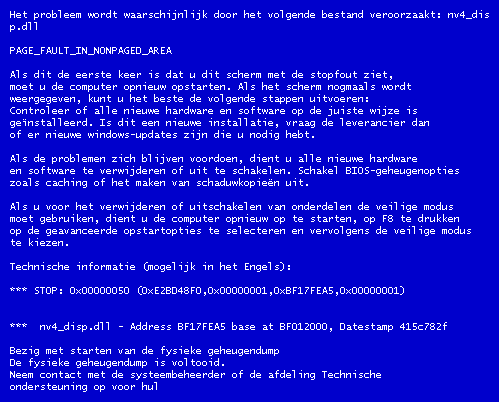
For Windows XP users may already have experienced a fatal error in Windows, Computer was suddenly dead and appears a blue screen with writing the code the code is not clear, this is called the Blue Screen Of Death or BSOD
Here I will try to explain the causes and how to solve this BSOD, especially is the intent of the codes that appear on our screens
1. IRQL_NOT_LESS_OR_EQUAL (0X0000000A)
This is a mastermind of pure culprit in the BSOD. Since most of the BSOD, this message most often appears. The error message is caused mostly because there is a mismatch drivers installed on your computer.
List of Causes:
* Problem drivers clash or do not match
* Problems Video Card, this cover is on the overclocked video card exceeds the limit or you just changed video card and you do not uninstall the old video card drivers from different chipset
* Issues Audio Card, include configuration errors or bugs in the sound card driver
2. NTFS_FILE_SYSTEM Information or FAT_FILE_SYSTEM (0X00000024) or (0X00000023)
Well, this message at least have a little "disconnected" giving a picture of where the damage was, which is on the partition or housing a filesystem, but not in HD. We can check by examining the SATA or PATA cable or can check the partition with chkdsk tool.
3. UNEXPECTED_KERNEL_MODE_TRAP (0x0000007F)
When you get a message like this, can be caused by:
* Hardware Overclock excessive
* Computer component overheating
* BIOS corrupt
* Memory and CPU is disabled
4. DATA_BUS_ERROR
This message is caused because of the possibility that memory or the memory slot on the motherboard is damaged.
5. PAGE_FAULT_IN_NONPAGED_AREA
Due to hardware damage, including main memory, video card memory, or memory in the processor (L2 Cache)
6. INACCESSIBLE_BOOT_DEVICE
Due to a mistake in the wrong hard drive jumper configuration, boot sector viruses, the wrong IDE controller drivers, or chipset driver error.
7. VIDEO_DRIVER_INIT_FAILURE
An error occurred on the installation of video card drivers are less than perfect, restart during installation or can also occur because of errors in the installation of the driver.
8. BAD_POOL_CALLER
This error can occur because of errors or incompatible drivers. Often occurs during installation of XP from an upgrade, or not from the new installation.
9. PEN_LIST_CORRUPT
This message is caused due to a damaged RAM
10. MACHINE_CHECK_EXCEPTION
Disability caused by the CPU, or an aggressively overclocked, and power supply shortages or damaged resources.
So hopefully useful and you can find the location of the damage of your computer
Subscribe to:
Posts (Atom)