"The system BIOS has detected a possible issue with the cooling fan,
The cooling fan is an Important Part of a notebook PC. Operation of a notebook PC for an extended period of time without the cooling fan may result in permanent damage to the notebook PC.
Cooling Fan (902)
Enter - Shutdown "
is the message some time ago made me curious.
Some time ago one of my customers are having problems with Compaq notebooks, when turned on in BIOS there is an error message
"The system BIOS has detected a possible issue with the cooling fan,
The cooling fan is an Important Part of a notebook PC. Operation of a notebook PC for an extended period of time without the cooling fan may result in permanent damage to the notebook PC.
Cooling Fan (902)
Enter - Shutdown "
after the restart but the notebook can live inside the notebook sound very noisy fan, this is very scary for those who lay about computers, as a computer technician I had to think fast and precise, I was looking straight fault location and the damage, because the notebook was only 4 months then I do not dare to deconstruct the consideration of this case will void the official warranty from HP.
I tried looking for other alternatives, I released the Notebook battery, then I set aside some time and I blow with a hard on some notebooks the air vents, and it is very unusual, all returned to normal and the message
"The system BIOS has detected a possible issue with the cooling fan,
The cooling fan is an Important Part of a notebook PC. Operation of a notebook PC for an extended period of time without the cooling fan may result in permanent damage to the notebook PC.
Cooling Fan (902)
Enter - Shutdown "
is not there anymore, fan noise was back to normal, after which I concluded was dirty fan exposed to dust, or hair or other debris that interfere with the circulation udaran & cooling processors, because the processor & motherboard notebook sysytem heat then remove the error message "The system BIOS has detected a possible issue with the cooling fan,
The cooling fan is an Important Part of a notebook PC. Operation of a notebook PC for an extended period of time without the cooling fan may result in permanent damage to the notebook PC.
Cooling Fan (902)
Enter - Shutdown "
hopefully this can help the reader who uses the HP & Compaq notebook
Read More …
Showing posts with label BIOS. Show all posts
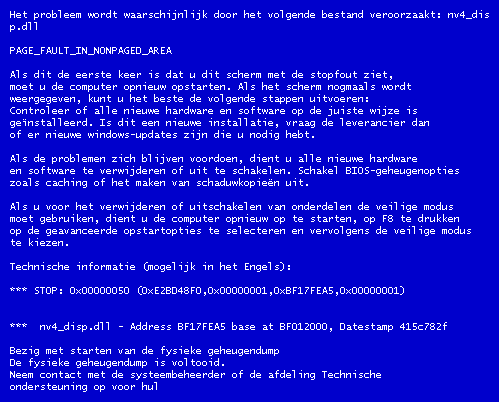
Error code on the Blue Screen Of Death (BSOD)
Label: BIOS, Blue Screen, BSoD, Code, Overclock, Software, Trick Windows, Virus, Windows 14 komentarFor Windows XP users may already have experienced a fatal error in Windows, Computer was suddenly dead and appears a blue screen with writing the code the code is not clear, this is called the Blue Screen Of Death or BSOD
Here I will try to explain the causes and how to solve this BSOD, especially is the intent of the codes that appear on our screens
1. IRQL_NOT_LESS_OR_EQUAL (0X0000000A)
This is a mastermind of pure culprit in the BSOD. Since most of the BSOD, this message most often appears. The error message is caused mostly because there is a mismatch drivers installed on your computer.
List of Causes:
* Problem drivers clash or do not match
* Problems Video Card, this cover is on the overclocked video card exceeds the limit or you just changed video card and you do not uninstall the old video card drivers from different chipset
* Issues Audio Card, include configuration errors or bugs in the sound card driver
2. NTFS_FILE_SYSTEM Information or FAT_FILE_SYSTEM (0X00000024) or (0X00000023)
Well, this message at least have a little "disconnected" giving a picture of where the damage was, which is on the partition or housing a filesystem, but not in HD. We can check by examining the SATA or PATA cable or can check the partition with chkdsk tool.
3. UNEXPECTED_KERNEL_MODE_TRAP (0x0000007F)
When you get a message like this, can be caused by:
* Hardware Overclock excessive
* Computer component overheating
* BIOS corrupt
* Memory and CPU is disabled
4. DATA_BUS_ERROR
This message is caused because of the possibility that memory or the memory slot on the motherboard is damaged.
5. PAGE_FAULT_IN_NONPAGED_AREA
Due to hardware damage, including main memory, video card memory, or memory in the processor (L2 Cache)
6. INACCESSIBLE_BOOT_DEVICE
Due to a mistake in the wrong hard drive jumper configuration, boot sector viruses, the wrong IDE controller drivers, or chipset driver error.
7. VIDEO_DRIVER_INIT_FAILURE
An error occurred on the installation of video card drivers are less than perfect, restart during installation or can also occur because of errors in the installation of the driver.
8. BAD_POOL_CALLER
This error can occur because of errors or incompatible drivers. Often occurs during installation of XP from an upgrade, or not from the new installation.
9. PEN_LIST_CORRUPT
This message is caused due to a damaged RAM
10. MACHINE_CHECK_EXCEPTION
Disability caused by the CPU, or an aggressively overclocked, and power supply shortages or damaged resources.
So hopefully useful and you can find the location of the damage of your computer
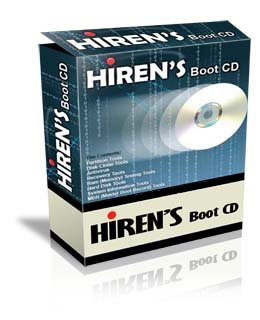
What and how do I use Hiren's Boot CD 11.0?
Label: BIOS, Boot CD, HBCD, Hiren's, Operating System, Software, Trick Windows 91 komentar
According to the previous post I promise that I will discuss the Hiren Boot CD 11.0, a package tool that must be owned by a computer technician, I've just used it to eradicate the virus sality which have damaged Windows, to not be able to boot again.
The following is an excerpt from http://www.hirensbootcd.net/ explanation:
Hiren's BootCD (HBCD) is a completely free bootable CD That contains a load of useful tools, you make use of cans in a variety of situations like analyzing, recovering and fixing your computer even if the primary operating system, cans not be booted.
It is a great resource for anyone with computer problems Who is having trouble accessing the internet to download programs in an attempt to fix it. It has a multitude of tools divided into a number of categories like partitioning tools, backup, recovery and BIOS / CMOS tools to Name A Few.
With Some simple knowledge about what is contained on the CD, you cans use it to repair many computer problems like hard drive failure, virus infections, partitioning, password recovery and data recovery.
May We call it as an emergency cd Technician or the which every user's home computer must have.
We thank and appreciate for his great Hiren BootCD. This site is just a download place for Hiren's BootCD and is not related with Hiren. For developer's homepage please visit Hiren's homepage under the links.
Partition Tools
If you need to make changes to the partitions on your computer, there are applications installments That Provides Various levels of functionality for accomplishing this goal. You can both create and delete partitions from your computer, even while there are other partitions on the hard drive you are modifying. Also You can resize partitions if needed, to change how much space is Allocated to them.
Backup and Recovery
There are installments backup and recovery tools on Hiren's BootCD. Backup tools like GetDataBack, HDD Scan, Partition Find and Mount, PhotoRec, Recuva, Undelete ... let you copy data off of your hard drive and schedule automatic backups to Ensure your data is saved to another location. Also You can recover deleted data, whether That data was deleted intentionally or accidentally. There Are Also A Few tools that will of help you recover data from Damaged or corrupted portions of your hard drive if you are Unable to recover Them through other methods.
Testing Tools
Hiren's BootCD Provides a variety of tools for testing different aspects of your computer. That if you suspect your RAM is corrupted or That a piece of hardware on your machine is not functioning properly, there are installments cans applications you run to determine the problems. Also You can perform a hard drive tests to see whether your hard drive is physically Damaged, and get a report on how much longer your hard drive is expected to work.
Password Tools
Password recovery and modification tools are Also provided on Hiren's BootCD. You can change the administrator password on Windows machines, and there are utilities for saving passwords for your online accounts in an encrypted format. Also You can encrypt your entire hard drive with Hiren's BootCD so That a password is required to read or write any data from or to your hard drive.
Mini Windows XP
To clear a virus and use a large collection of HBCD tools, choose the Mini Windows XP option. A simple version of Windows XP will of load on the computer. It Might take A Few minutes to load everything Because it processes files directly from the CD. Once it has loaded, wait for the Hiren's Boot disk menu to pop up. Select the "Menu" option and scroll through the programs. The disc features the Windows password hackers, registry cleaners and a large collection of antivirus software.
Hiren Boot CD 11.0 it contains almost all the major equipment that we need to repair the damage the software on our computers.
See the latest version of Hiren's BootCD Here
Download Hiren's Boot CD 11.0 here
how to update BIOS?
Label: BIOS 0 komentarMuch of the confusion users to update their motherboard BIOS through DOS. Mainly because of the difficulty is usually made in a DOS floppy disk (floppy disk), while the disc is now extremely difficult to find.
This time we will update the AWARD BIOS with the DOS mode, but not with the disk, but with USB Flashdisk.selamat try ...
What to prepare:
Hardware:
One. USB stick (size up)
Software:
One. PCP + latest BIOS file. can be downloaded at http://www.komputergamer.com
2. HP USB Disk Storage Format Tool. Software to create a bootable USB stick. downloaded at: http://www.ruangpc.com/download/hpflash1.exe
3. MS-DOS. Commands Operating System to run in DOS mode. Download at: http://www.ruangpc.com/download/msdossysfile.zip
Ways:
One. Create a Bootable USB Disk advance
* Install the HP USB Format Utility
* Run the software HP USB Format Utility
* Download the file with MS Dos File System
* Extract the file and put in place anywhere
* Run the software HP USB Format Utility
* Format your USB and tick the "Create a DOS startup disk" and check "using DOS System Files located at" and point the msdos file system files contained in the folder where you store
* Click Start when ready. Wait until the process is complete
* Copy Files updatean bios who form. Zipped into the flash
* Extract files. Zip file contents to be outside (not inside a folder)
* Record file extention name. "BAT", because it needed to be typed in DOS mode
* USB is ready for use to boot.
2. Set Booting via USB flash
* Put the USB stick who had been ready to boot before the computer is turned on
* Log into Bios by pressing "DEL" when the new computer is turned on
* Go to the menu "Advanced BIOS Feature"
* Select "hard disk boot priority", and then make your flash boot priority no. One with the '+' or '-' PD keyboard
* Save the BIOS configuration is with pressing the 'F10', then press "Y '(Yes), then enter
* The computer will reboot, and allow it to go into DOS Operating System
3. Bios Update
* Once you get into a DOS (command prompt such as A: \>), type the file name. "BAT" last. ie: "HA0307.BAT" then hit enter
* AWARD Bios Flasher will appear, press enter when prompted to confirm the bios file name that will be executed.
* Wait until the update process is complete (about 5 minutes)
* After the update finished, you will be prompted for confirmation to restart by pressing Enter
* PC would restart, and your PC is ready to use with the new bios. do not forget to restore the Boot Device to your hard drive
Good luck!
This time we will update the AWARD BIOS with the DOS mode, but not with the disk, but with USB Flashdisk.selamat try ...
What to prepare:
Hardware:
One. USB stick (size up)
Software:
One. PCP + latest BIOS file. can be downloaded at http://www.komputergamer.com
2. HP USB Disk Storage Format Tool. Software to create a bootable USB stick. downloaded at: http://www.ruangpc.com/download/hpflash1.exe
3. MS-DOS. Commands Operating System to run in DOS mode. Download at: http://www.ruangpc.com/download/msdossysfile.zip
Ways:
One. Create a Bootable USB Disk advance
* Install the HP USB Format Utility
* Run the software HP USB Format Utility
* Download the file with MS Dos File System
* Extract the file and put in place anywhere
* Run the software HP USB Format Utility
* Format your USB and tick the "Create a DOS startup disk" and check "using DOS System Files located at" and point the msdos file system files contained in the folder where you store
* Click Start when ready. Wait until the process is complete
* Copy Files updatean bios who form. Zipped into the flash
* Extract files. Zip file contents to be outside (not inside a folder)
* Record file extention name. "BAT", because it needed to be typed in DOS mode
* USB is ready for use to boot.
2. Set Booting via USB flash
* Put the USB stick who had been ready to boot before the computer is turned on
* Log into Bios by pressing "DEL" when the new computer is turned on
* Go to the menu "Advanced BIOS Feature"
* Select "hard disk boot priority", and then make your flash boot priority no. One with the '+' or '-' PD keyboard
* Save the BIOS configuration is with pressing the 'F10', then press "Y '(Yes), then enter
* The computer will reboot, and allow it to go into DOS Operating System
3. Bios Update
* Once you get into a DOS (command prompt such as A: \>), type the file name. "BAT" last. ie: "HA0307.BAT" then hit enter
* AWARD Bios Flasher will appear, press enter when prompted to confirm the bios file name that will be executed.
* Wait until the update process is complete (about 5 minutes)
* After the update finished, you will be prompted for confirmation to restart by pressing Enter
* PC would restart, and your PC is ready to use with the new bios. do not forget to restore the Boot Device to your hard drive
Good luck!
Read More …
BIOS Beep Code
Label: BIOS 0 komentar
Beep Code Manual
AMI BIOS Beep CodesWhen a computer is first turned on, or rebooted, its BIOS performs a power-on self test (POST) to test the system's hardware, checking to make sure that all of the system's hardware components are working properly. Under normal circumstances, the POST will display an error message; however, if the BIOS detects an error before it can access the video card, or if there is a problem with the video card, it will produce a series of beeps, and the pattern of the beeps indicates what kind of problem the BIOS has detected.
Because there are many brands of BIOS, there are no standard beep codes for every BIOS.
AMI Beep Codes
Beep Code Meaning
1 beep DRAM refresh failure. There is a problem in the system memory or the motherboard.
2 beeps Memory parity error. The parity circuit is not working properly.
3 beeps Base 64K RAM failure. There is a problem with the first 64K of system memory.
4 beeps System timer not operational. There is problem with the timer(s) that control functions on the motherboard.
5 beeps Processor failure. The system CPU has failed.
6 beeps Gate A20/keyboard controller failure. The keyboard IC controller has failed, preventing gate A20 from switching the processor to protect mode.
7 beeps Virtual mode exception error.
8 beeps Video memory error. The BIOS cannot write to the frame buffer memory on the video card.
9 beeps ROM checksum error. The BIOS ROM chip on the motherboard is likely faulty.
10 beeps CMOS checksum error. Something on the motherboard is causing an error when trying to interact with the CMOS.
11 beeps Bad cache memory. An error in the level 2 cache memory.
1 long beep, 2 short Failure in the video system.
1 long beep, 3 short A failure has been detected in memory above 64K.
1 long beep, 8 short Display test failure.
Continuous beeping A problem with the memory or video.
BIOS Beep Codes
Read More …
Subscribe to:
Posts (Atom)
Copyright © 2009-2012 Computer Knowledge. All rights reserved.